What Are Categories?
Categories are how Vanilla organizes discussions within a community. Categories can be added, edited, deleted, sorted, and tiered via the Dashboard. Every discussion is placed in one (and only one) category.
You can find Categories under the Settings tab Dashboard, listed under “Discussions”. You can access it directly by going to /vanilla/settings/categories.

At the top of the page, you will presented with the option to either add a new category, or disable them completely.
Creating Categories
Think of categories like chat rooms where users hang out. With Vanilla Forums you can create unlimited categories, sub-categories and sub-sub categories. To create a category, navigate to the Dashboard, then Settings -- you will find Categories under the Discussions tab in the Dashboard.

The will bring up the following page, where you can add categories as you choose:

Category Name
Start by choosing a name for your new category.
URL Slug
By default, the category url will be automatically populate with the title of the category also be based on the category's name, but you can customize that by clicking the edit button next to the url.
Proper syntax for URLs is required here, so spaces are not allowed.
Description
You can add a description to you category, maximum of 500 characters. This will appear on the homepage or under the title on the categories page, depending on your theme.
CSS Class
You can also add a special CSS class , which you can use in your theme to control its' appearance.
The specified text will be added as a class for the category’s HTML wrapper. This makes it so that you can target it specifically when building a theme.
Photo
You can add a picture or icon to your category, which will appear on the main index in some themes.
Hide from Recent discussions
If desired, you can choose to hide all posts in a category from appearing within recent discussions -- this prevents threads in the category from appearing on /discussions.
This is typically used for chit chat type categories, or anything with a limited audience, or that you simply don't want front and centre.
Additional Options
Some settings, such as custom permissions, will only be available after creating the category and going back in and editing it. See below for more options.
Disabling Categories
Disabling categories will streamline your forum, reducing the forum to the “Recent Discussion” view. You can toggle categories off on at any point. If you decide to use categories once more, any threads that were already designated to a particular section will be restored. Threads made while categories were not in use will be placed into whatever category is at the top of your list.
Choosing Your Category Layout
Before modifying your individual categories, you can choose how they will appear on your homepage. In the Dashboard, under the “Appearance” panel there is a “Layout” section. In this area, there are options for how to display the Categories page for your users.
The Modern Layout removes the extra columns for discussion and comment totals, making for a clean look.
The Table Layout shows discussion and comment totals as columns, along with user avatar and the thread title of the most recent post in the section.
The Mixed Layout option shows up to five of the most recently updated discussions under each category, providing quick navigation to new content.
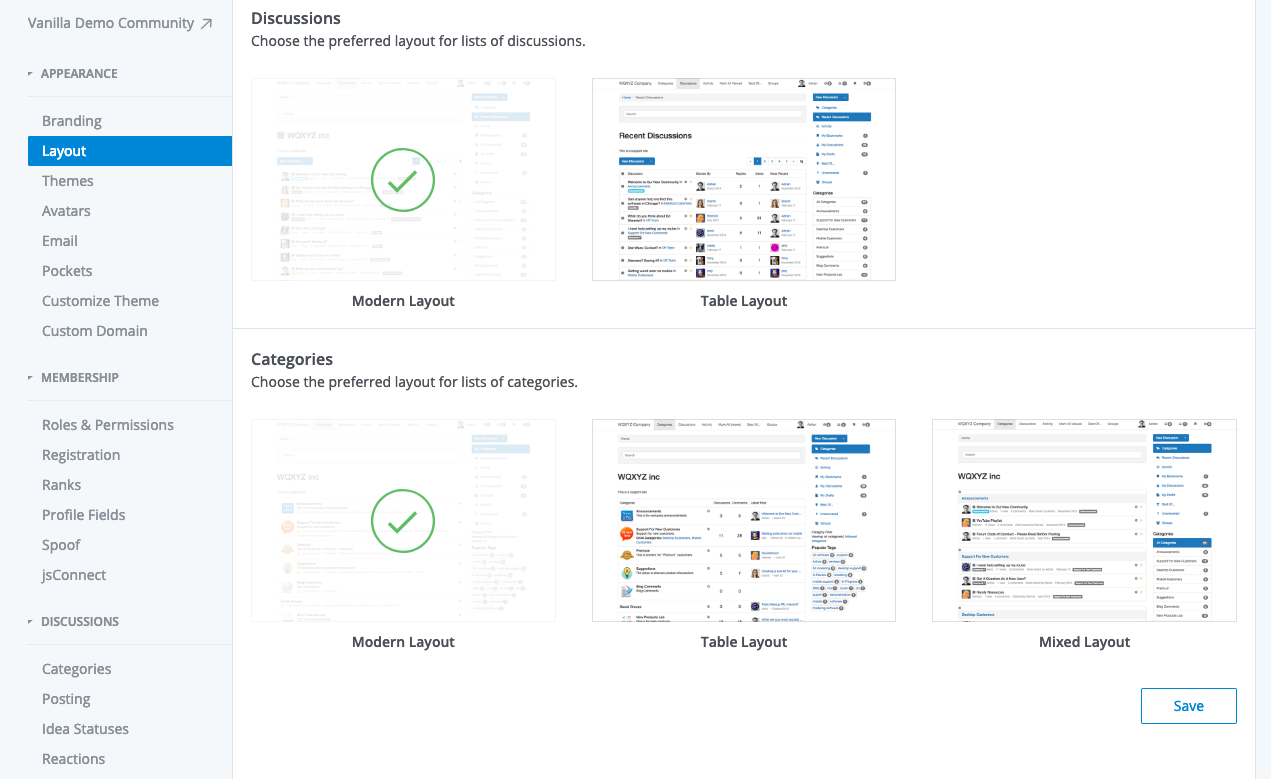
Choosing How Categories Display
Categories are easily arranged. Just click on the left side of a specific category to drag and drop it into your desired position. Changes to organization will be reflected immediately on the main forum index.
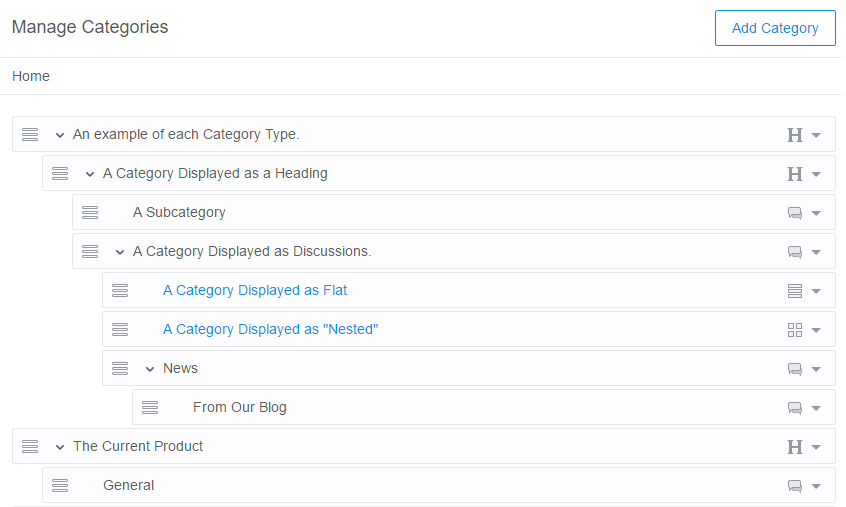
Category Types
Category types affect how categories are viewed on the forum. Opening the right drop down will reveal the “Display As” menu. These settings critically change the way a category behaves.

Discussions
The default category type, a basic category where users can post discussions.
Heading
Unclickable Headings that help with forum organization. On the homepage, they will display differently according to your theme. Generally they are bold, and will split your categories into sections:
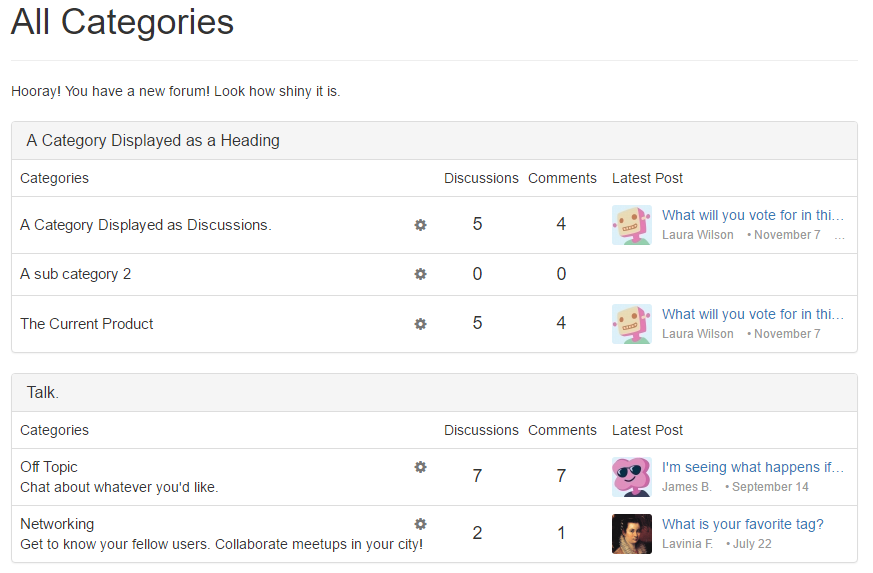
Flat
This is a paginated directory structure that can handle thousands of categories. They are sorted alphabetically by default, and cannot be manually arranged.
This is typically only recommended for very large communities with a great deal of categories.
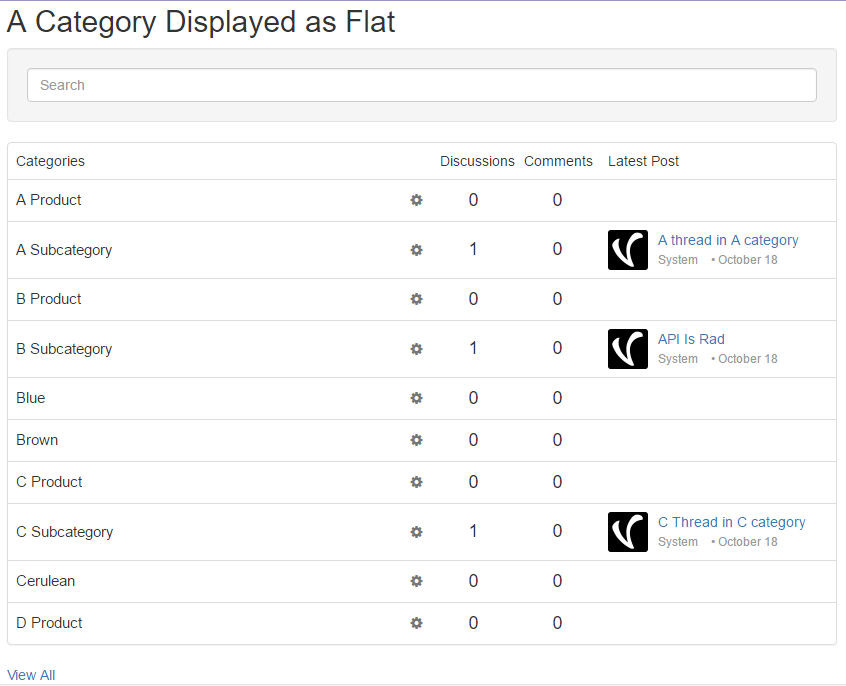
Flat categories have a module that can be inserted into your theme. This will blend right in with your index and list a small number of the categories that the section contains. It has a quick search module, allowing for users to shift through hundreds of categories with ease. This is great for sites that have a large number of products.
To add this to your theme, use this module:{module name="FlatCategoryModule" categoryID=00}
You can find the numerical categoryID in the URL when you are editing a category.
Nested
Creates a clickable heading that only contains more categories. Unlike Flat categories, this is generally for creating small sections within your forum, and can be manually organized.
Used with subcommunities.
Other Settings
Archive
This removes the category from the main index and prevents threads in the category from coming up in the site-based search. Archived Categories are still indexed by search engines and can prevent broken links.
Ideation
If you have the Ideation addon included in your plan and enabled, you will also see the option to make it an Idea Category.
Maximum Category Display Depth
This setting is located Posting section of the dashboard, vanilla/settings/posting.
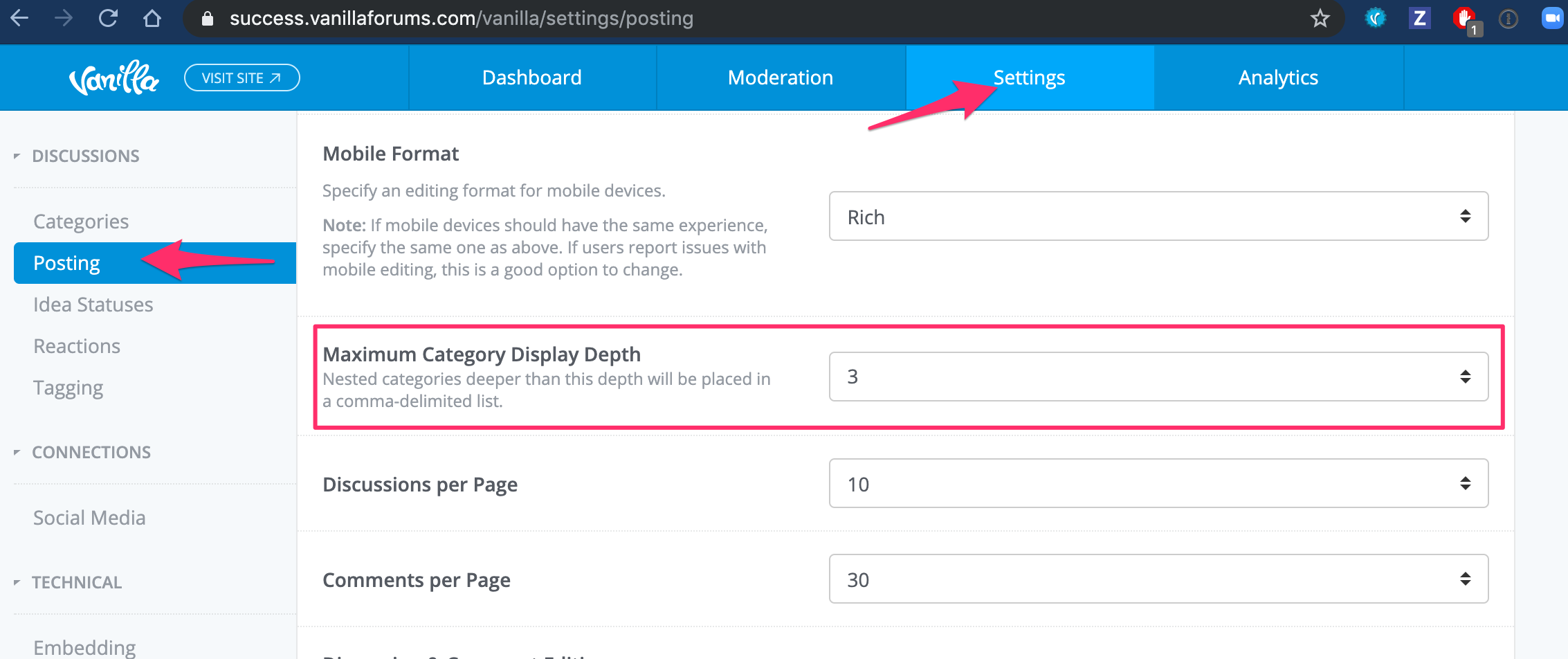
The default setting is “No Limit”, but you can choose to set a level at which nested categories will be placed in a comma-delimited list.
The subcategories will appear as hyperlinks under their root category when viewing the forum index.

Custom Permissions
From the Categories page in your Dashboard, select the category for which you would like to enable custom permissions.
Click the chevron on the far right and select “Edit”, and then enable this option via the toggle:

Once “This category has custom permissions” is enabled you will see some new options.
You will be able to configure:
- Allowed discussion types
- File Upload abilities
- Custom permissions for each role

If you have a plugin like Q&A enabled, you can use these options to choose where your users can create those threads. You can also disable polls and file uploads, if they don’t suit the category.
You can also restrict who can view, post in, or perform moderation actions in particular categories.
All your roles will appear in a grid-like format, allowing you to enable or disable permissions for each role for this specific category.
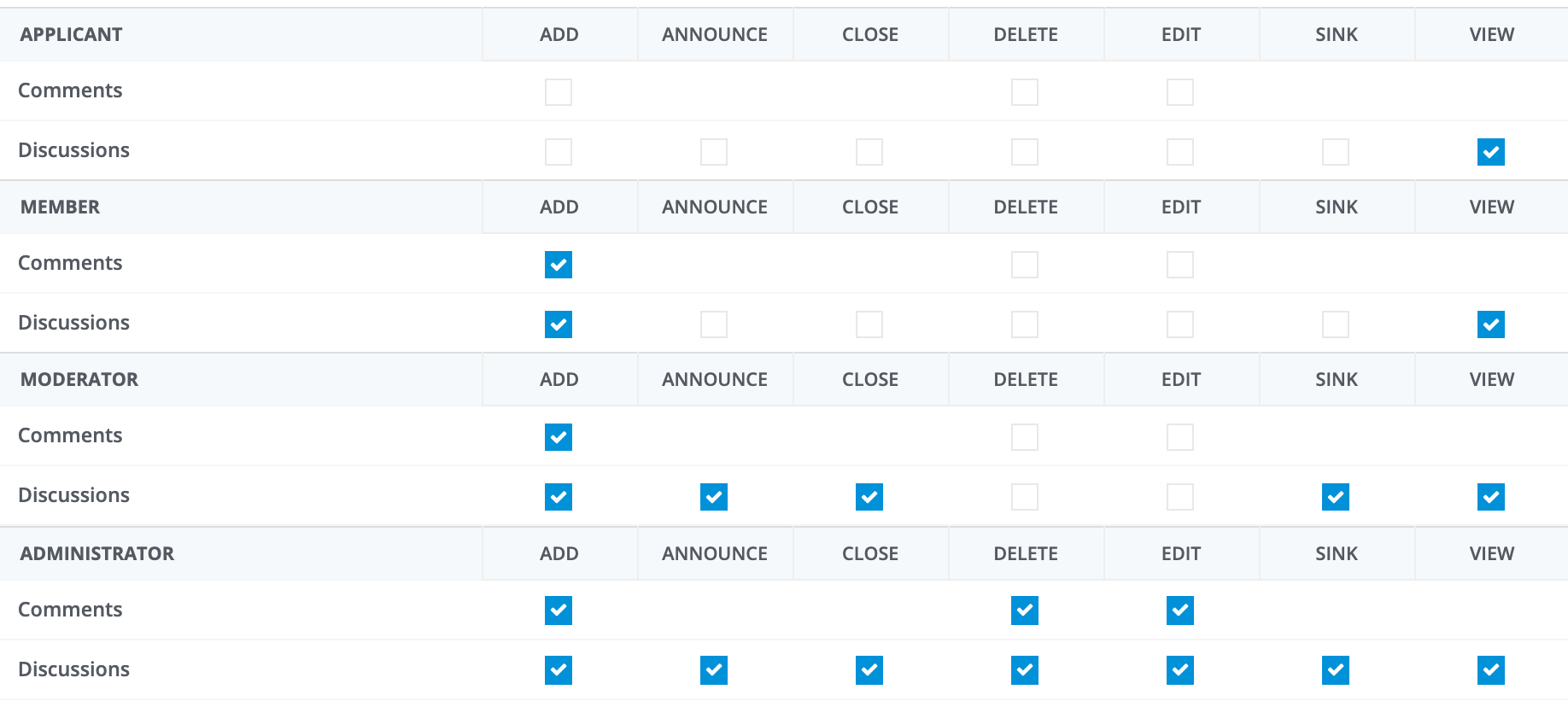
In order to hide a the category from a role, remove the "View" permissions.
In order to make a read-only category, remove the "Discussion>Add" and/or "Comment>Add" permissions.
N.B. Only trusted roles should have edit, close, sink, announce, or delete permissions, as these will allow users to manage and moderate content.
Don’t forget to click save at the bottom!
See main article on roles and permissions
Deleting a Category
You can delete a category from the dashboard, the option is in the right-hand menu of each category:

Upon deleting a category, you will be prompted to select a replacement category from a drop-down menu. If you elect not to choose a replacement category, all threads and posts will be deleted.

? ?It is not possible to recover a deleted category. ? ? It is important to make sure that you have selected a new destination if you’d like to retain the contained threads. Alternatively, you can archive categories by removing viewing and posting permissions for users, rather than deleting content. This is recommended, as it avoids the accidental loss of threads.
Additional Resources:
Category Following
Category following gives users a shortcut to discussions in their favorite categories. You can then filter discussions to only show content from categories you follow.
This feature is turned off by default and is not visible to guests.
How to enable this feature?
You can find the Categories options page in the Dashboard, under the “Discussions” section.

Or, you can directly go to that page with the url /vanilla/settings/categories. At the top right of the page, you’ll see a settings button, next to the “Add Category” button.

From there, you can toggle on category following.

How to use it?
With this feature activated, you will see a new button show up next to the title on categories that display as discussions

Once clicked, it will change to “Following”. You can click it again to unfollow the category.

This feature also adds a filter to the /categories page.

You can chose to view all categories or followed categories only. Note that your preference is saved in your user profile.
How do I translate it?
The keys for the following button are: Followand Following. The capitalization is done with CSS and can be undone in your theme’s CSS if you prefer.
How to theme it?
The icons can take the color you like by setting the color in CSS. By default, they inherit the text color. The new elements reuse existing CSS classes but also add new, unique ones for the category following that can be used.
If you have a custom theme and you have a staging site, we highly recommend you test out your theme on staging first. Vanilla has tested our core themes with this feature, but we cannot anticipate all customizations done by themes.
? Keep Reading: 5- the Front End